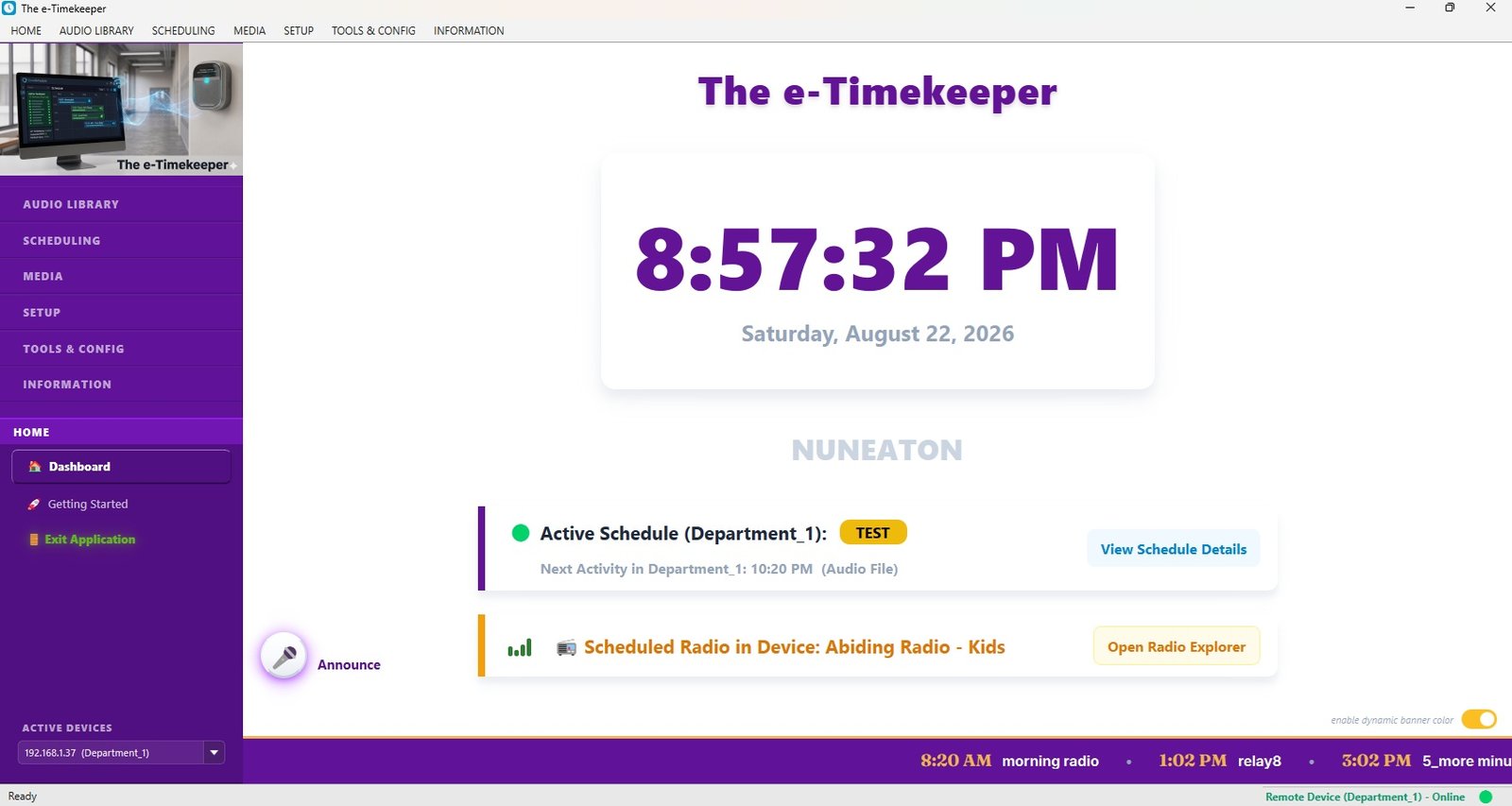
e-Timekeeper rings your bells, sounds period changes and plays announcements automatically. You programme it once from a Windows PC — then switch the PC off and leave it alone.
Manual bells rely on a person being free and on time. A software timer relies on a computer nobody switches off. e-Timekeeper is a dedicated device that simply does the job — quietly, on its own.
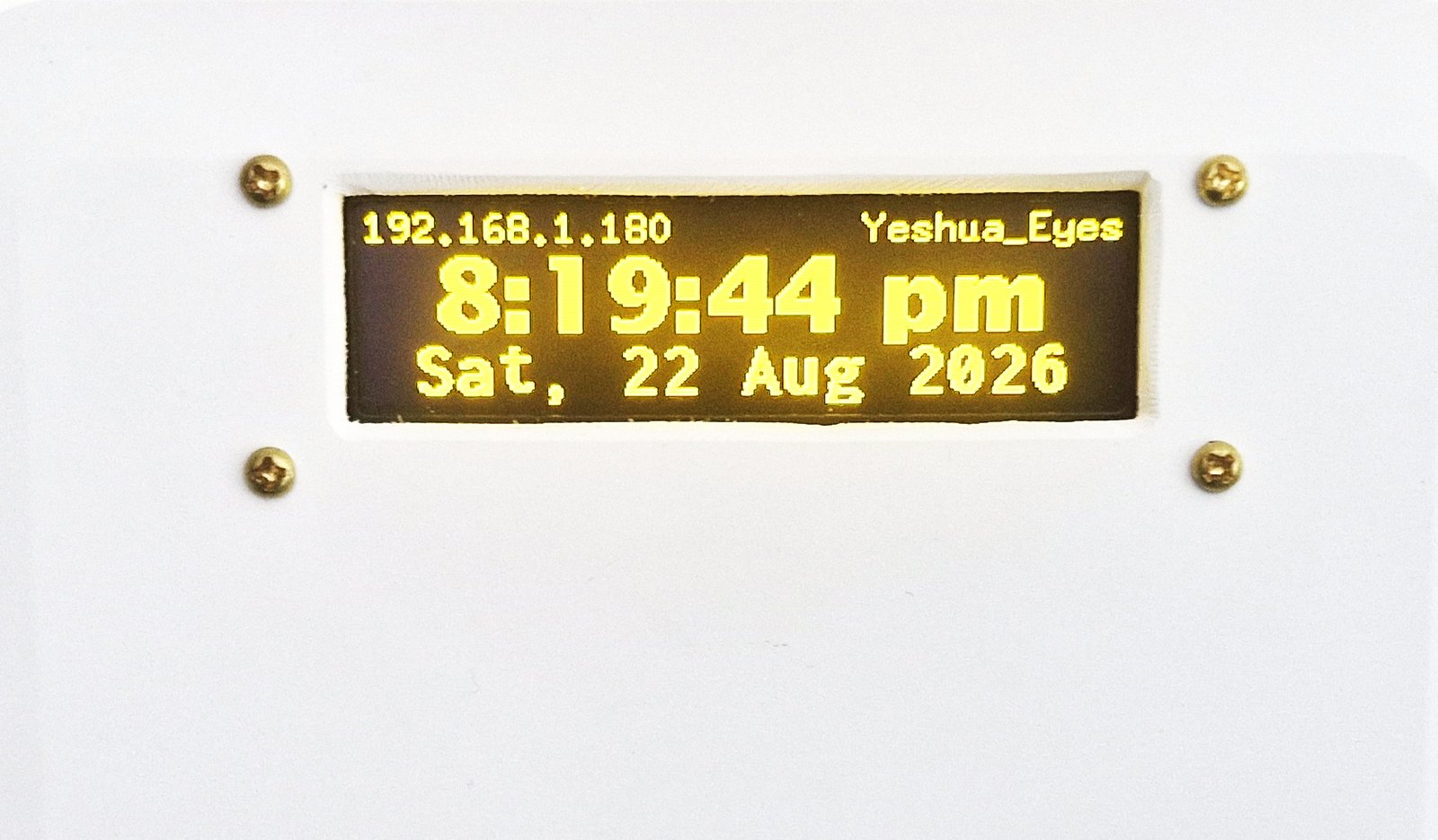
Once a schedule is sent, the controller needs nothing further — not the PC, not your network, not the internet. It keeps its own clock and carries on through power cuts.
Build your whole term in minutes — normal days, exam days, half days, holidays — and push it to every controller in the school from one Windows application.
Speak straight through the school speakers from the PC, play music, stream radio, or broadcast a recorded lecture to the rooms you choose. Whatever is playing steps aside for a scheduled bell.
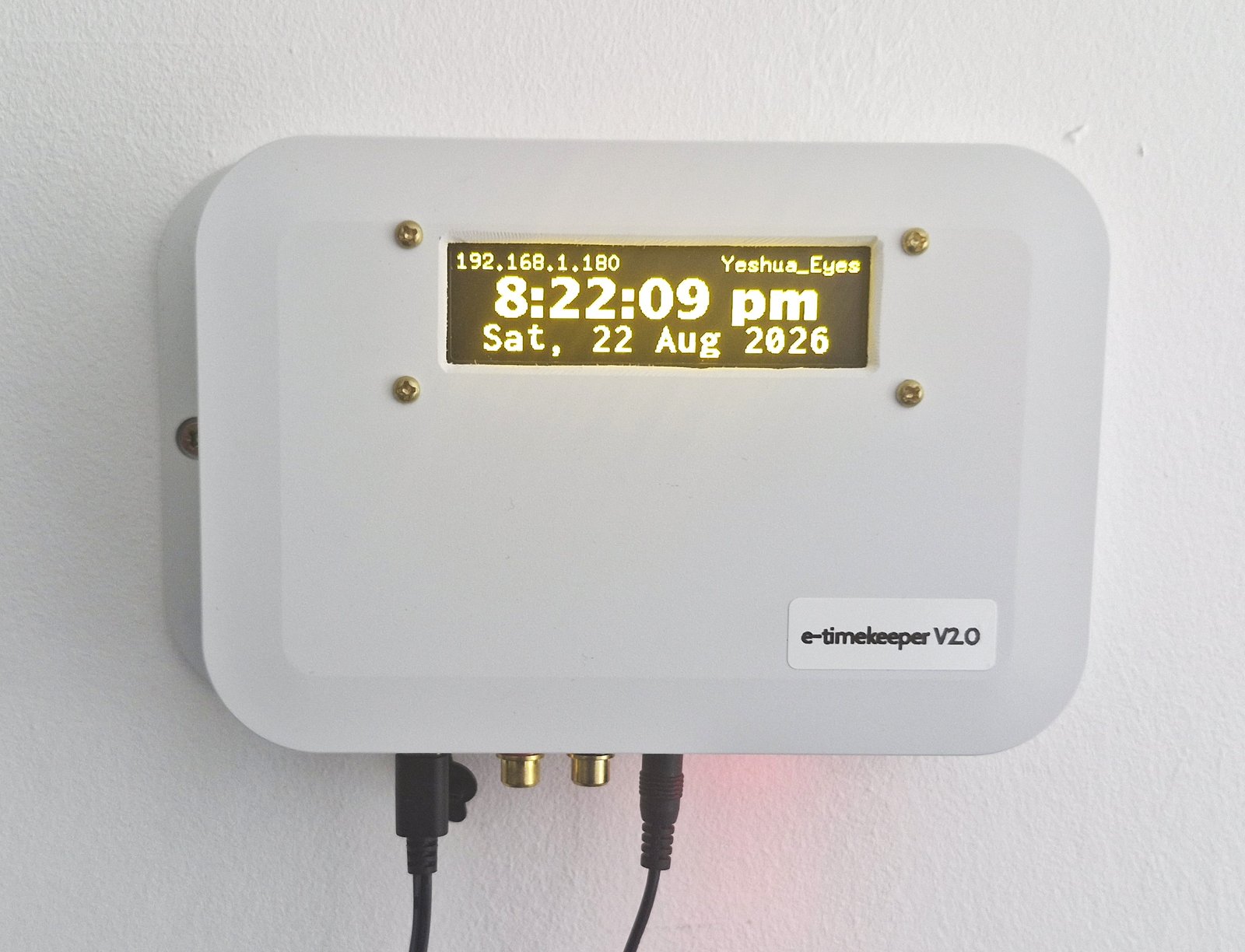
The controller mounts on the wall beside your PA or amplifier and connects with a standard audio cable. You pair it to your Wi-Fi once, through the device's own setup network.

Create your day patterns once, then paint them onto the calendar — every Monday of the term in a single click, or a one-off exam day on its own date.

Send the profile to the device and switch off the PC. From that moment it sounds every bell and announcement on time, every day, with nothing for anyone to remember.

Most of the work in a bell system is repetition. e-Timekeeper is built so you do each pattern once and then apply it wholesale.
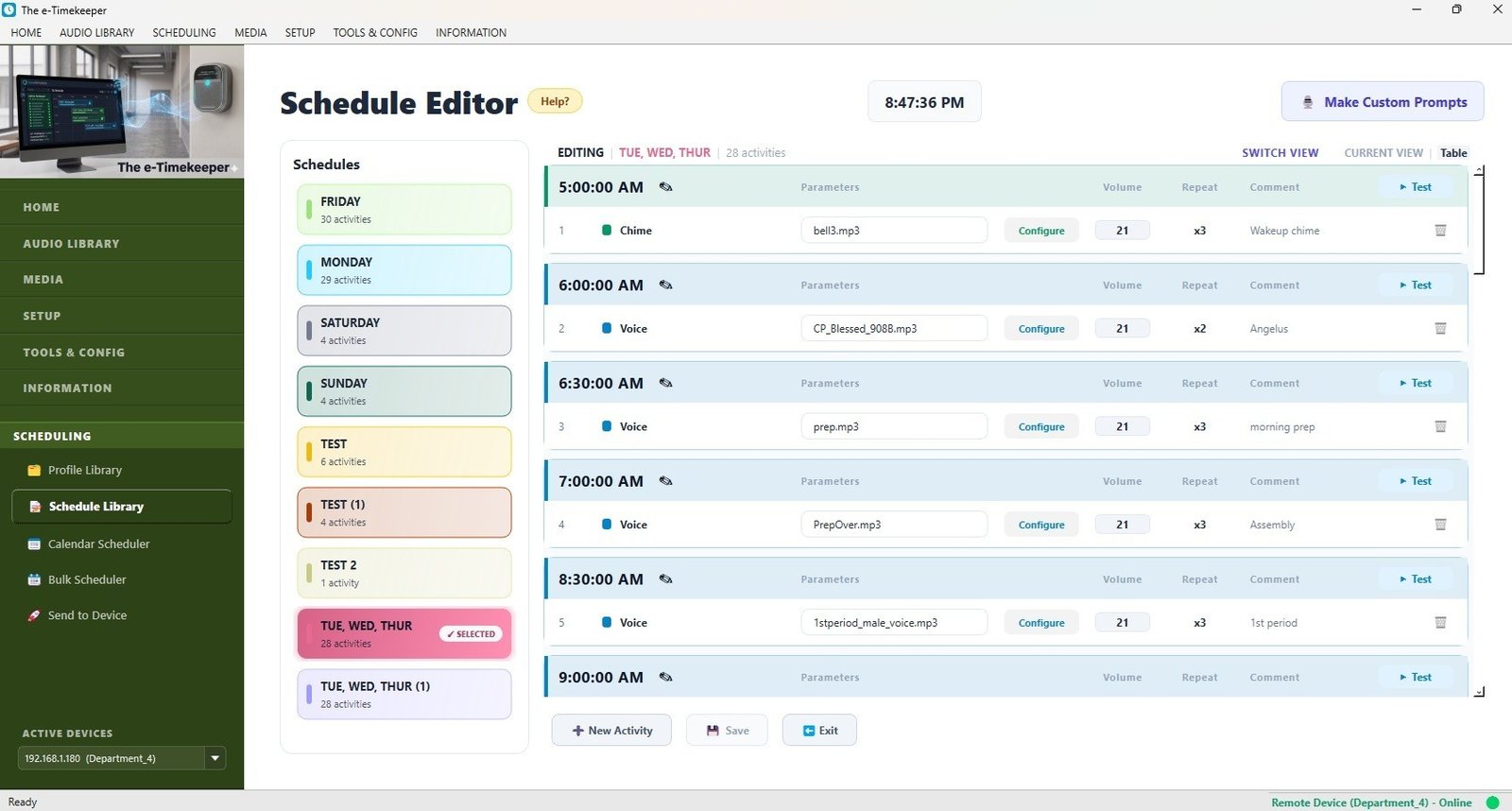
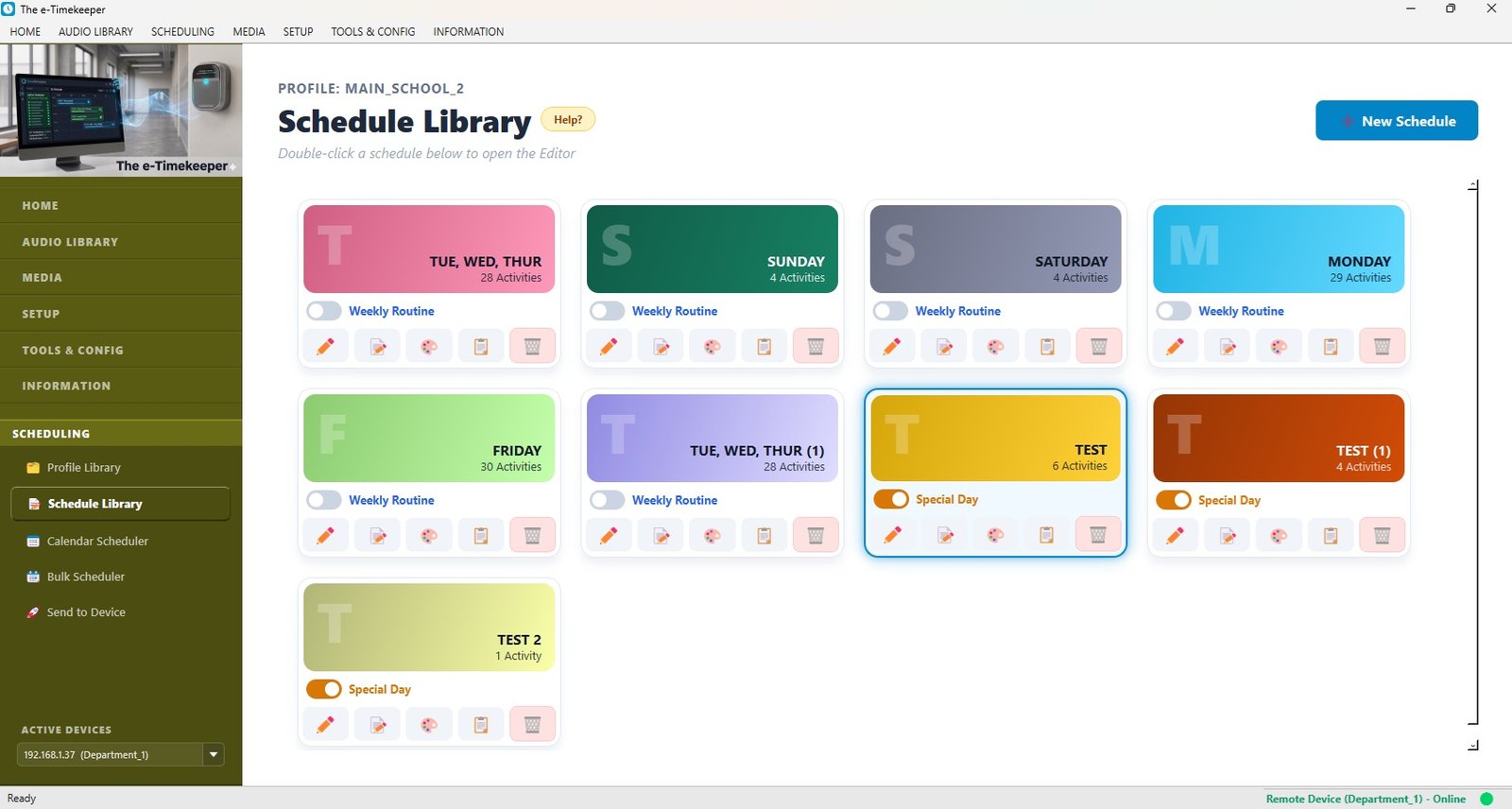
A schedule is one day's worth of timed activities. Build "Normal Day", "Exam Day" and "Half Day" once, then decide on the calendar which dates use which.

The Schedule Editor — one day's activities, built once and reused all year.
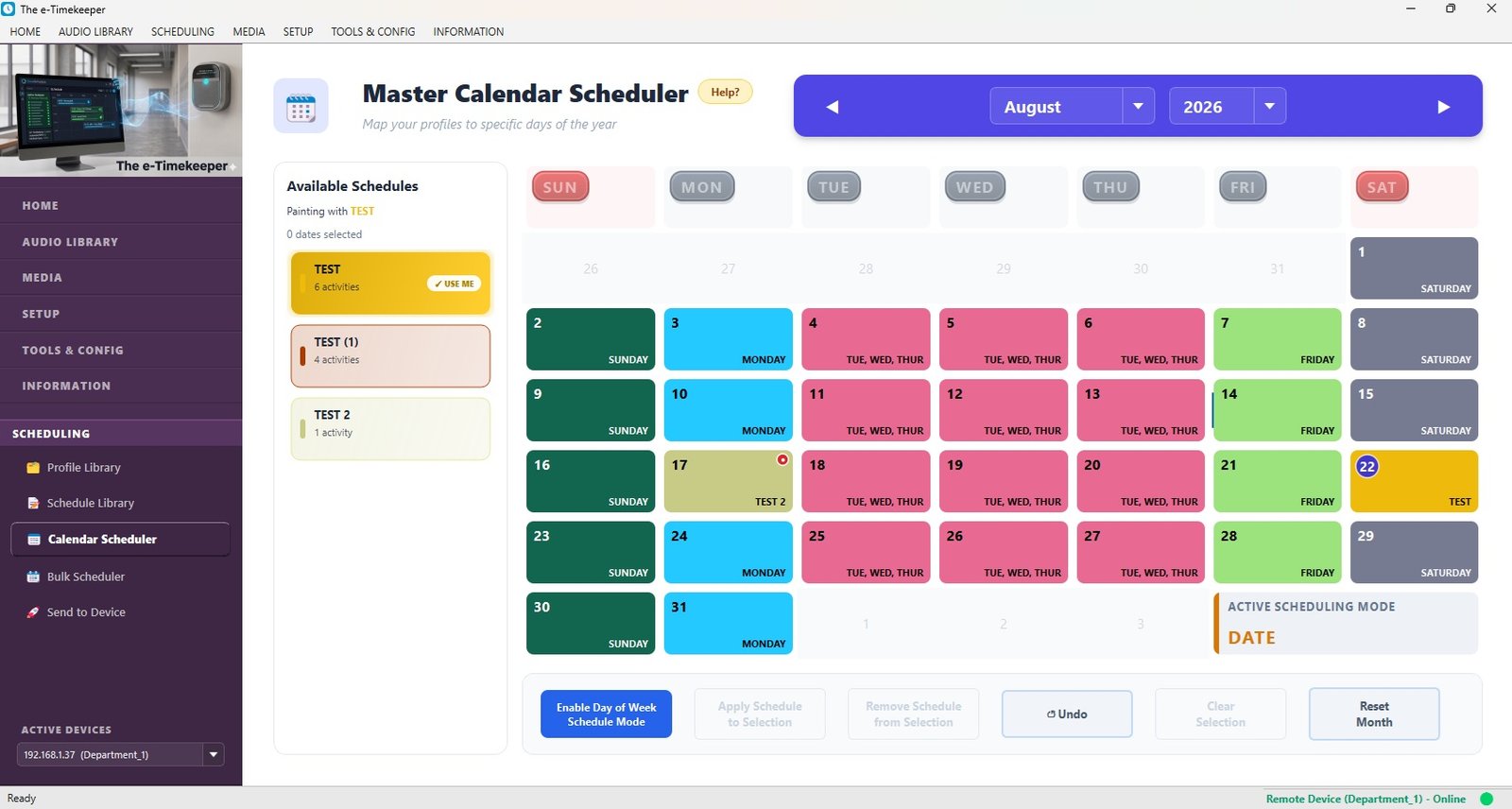
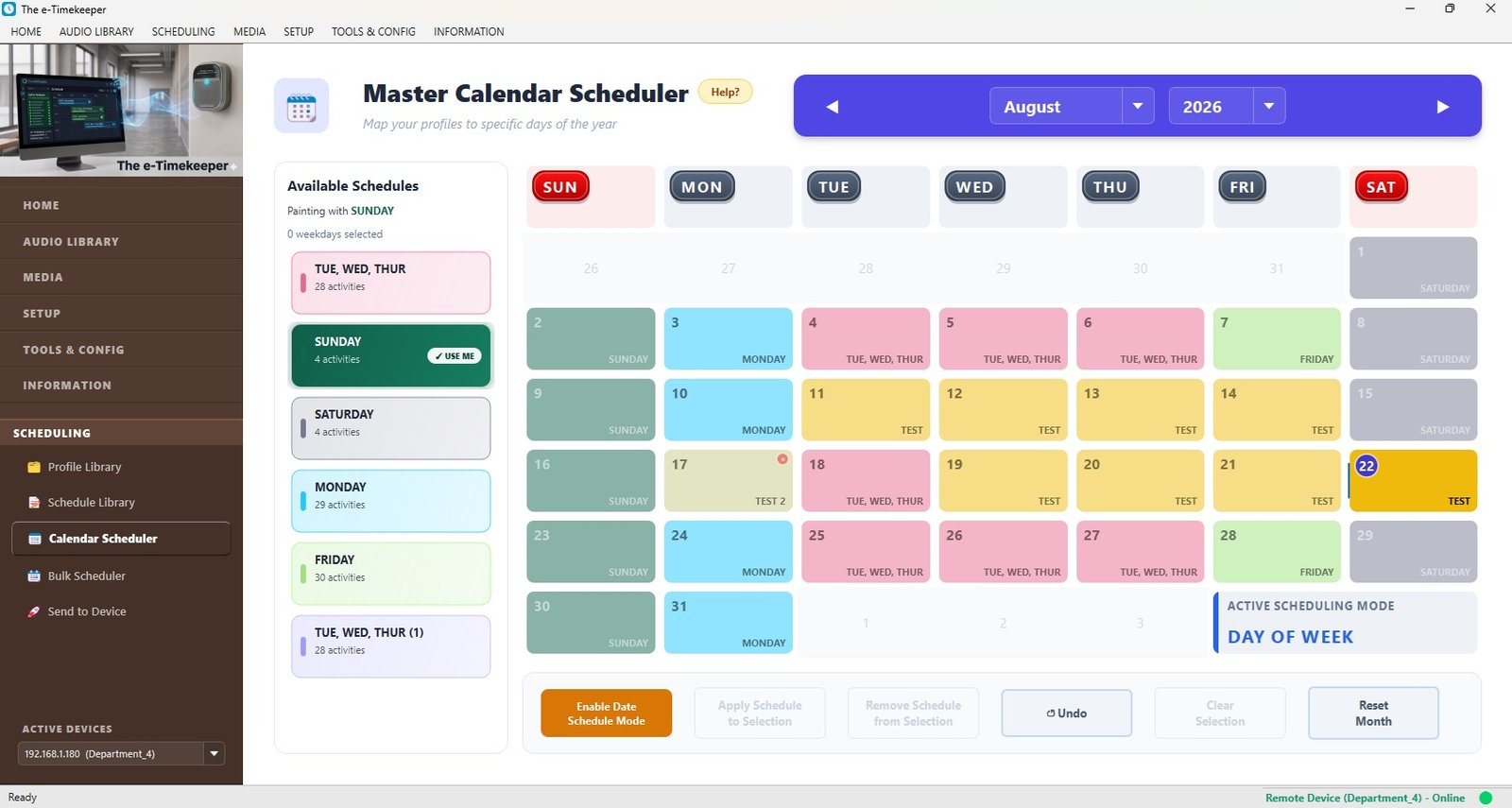
The Master Calendar works the way you actually think about a term.

The Master Calendar — a term's worth of days, colour-coded at a glance.

Day of Week mode — click Monday, apply, and every Monday is set.
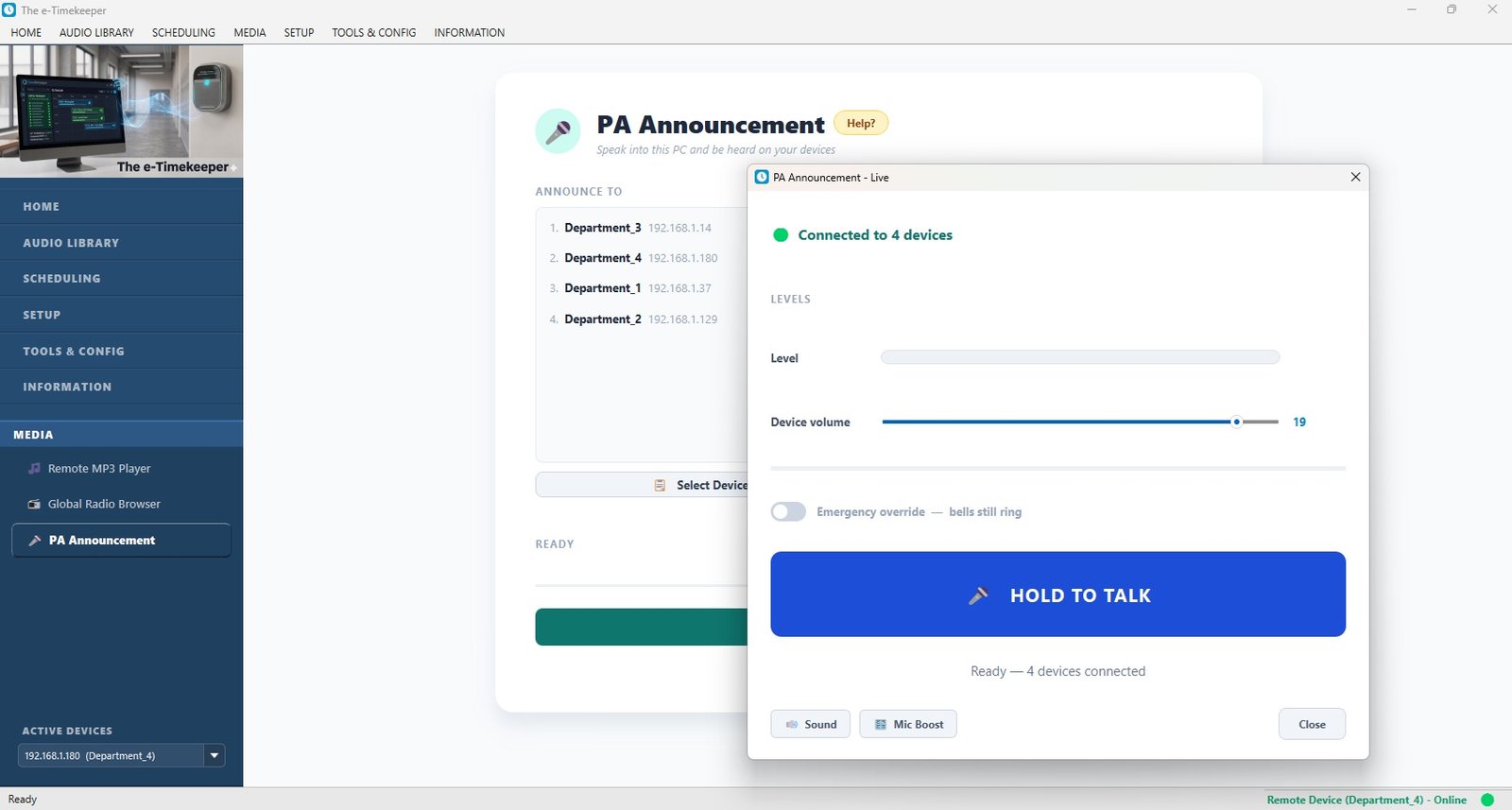
The same device that rings your periods doubles as the school's public address system — scheduled or live.
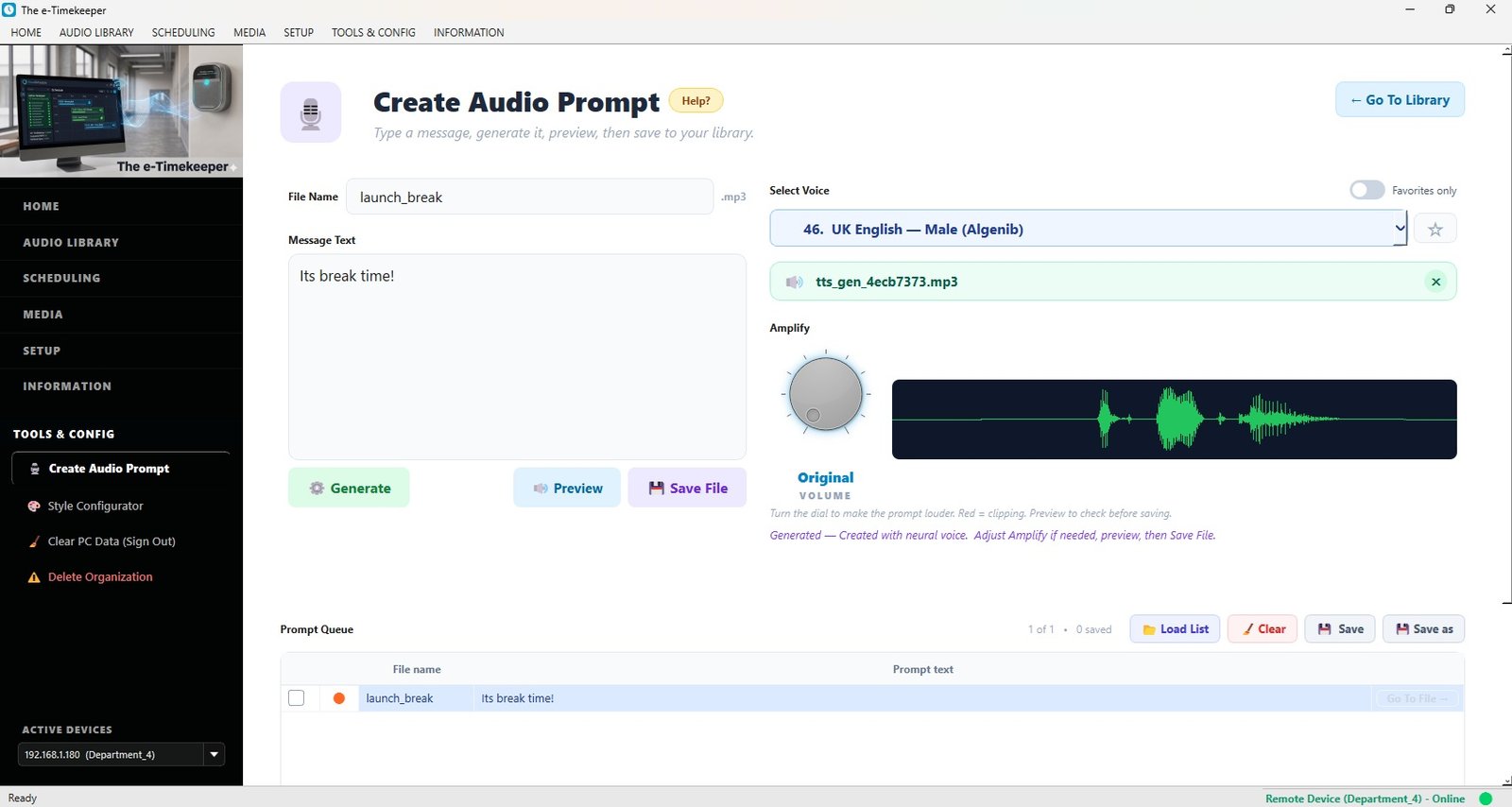
Type what you want said, choose a voice, and the app generates a natural-sounding announcement you can save straight into your library — no recording session, no microphone.

Create Audio Prompt — type the announcement, pick a voice, check the level, save it.
Hold to talk from the PC and your voice goes out through the school speakers. Music fades and resumes automatically afterwards.
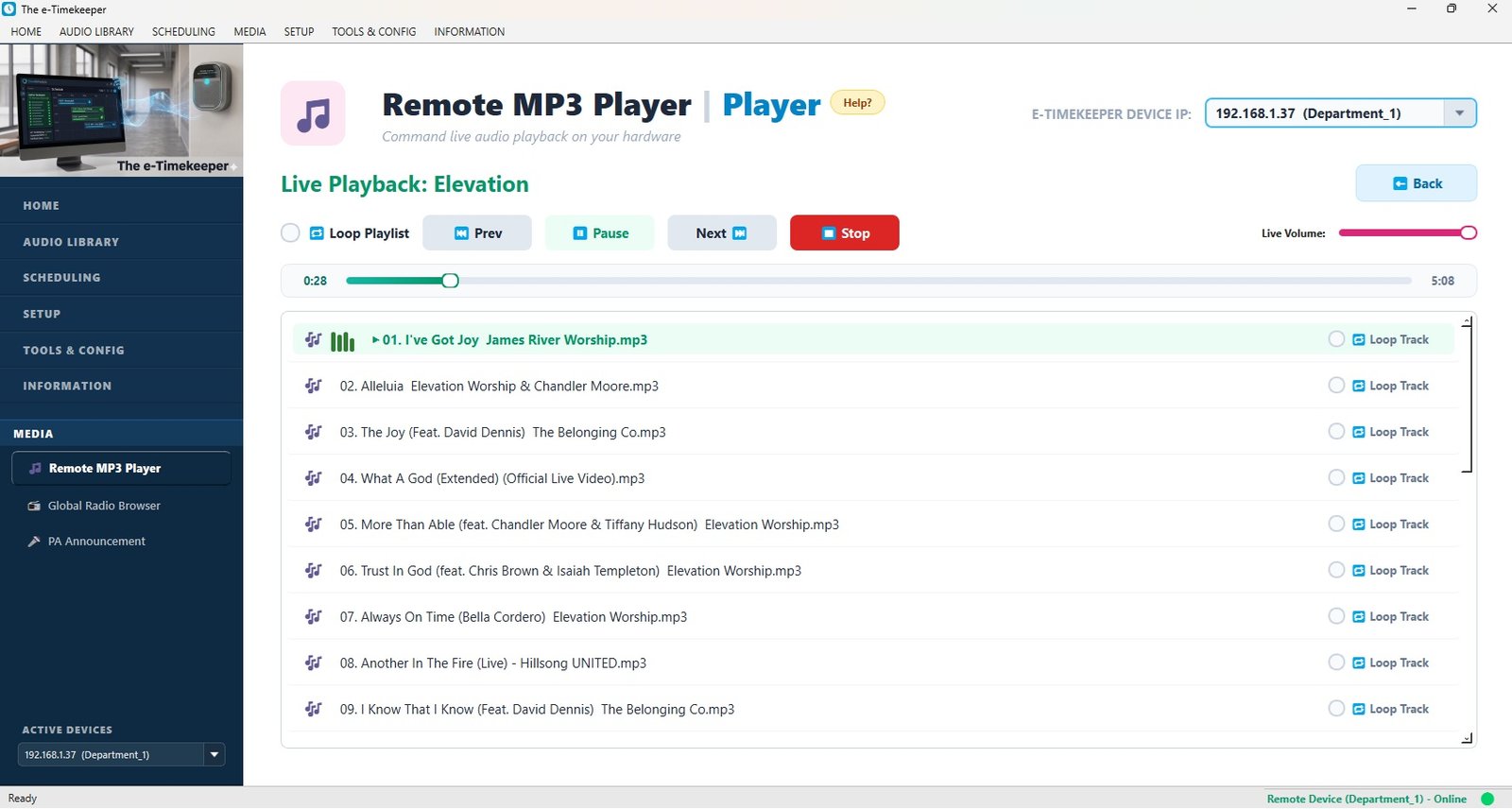
Upload MP3s to the device's own storage, build playlists, and play them live for assembly, break or events — the PC does not need to be on.
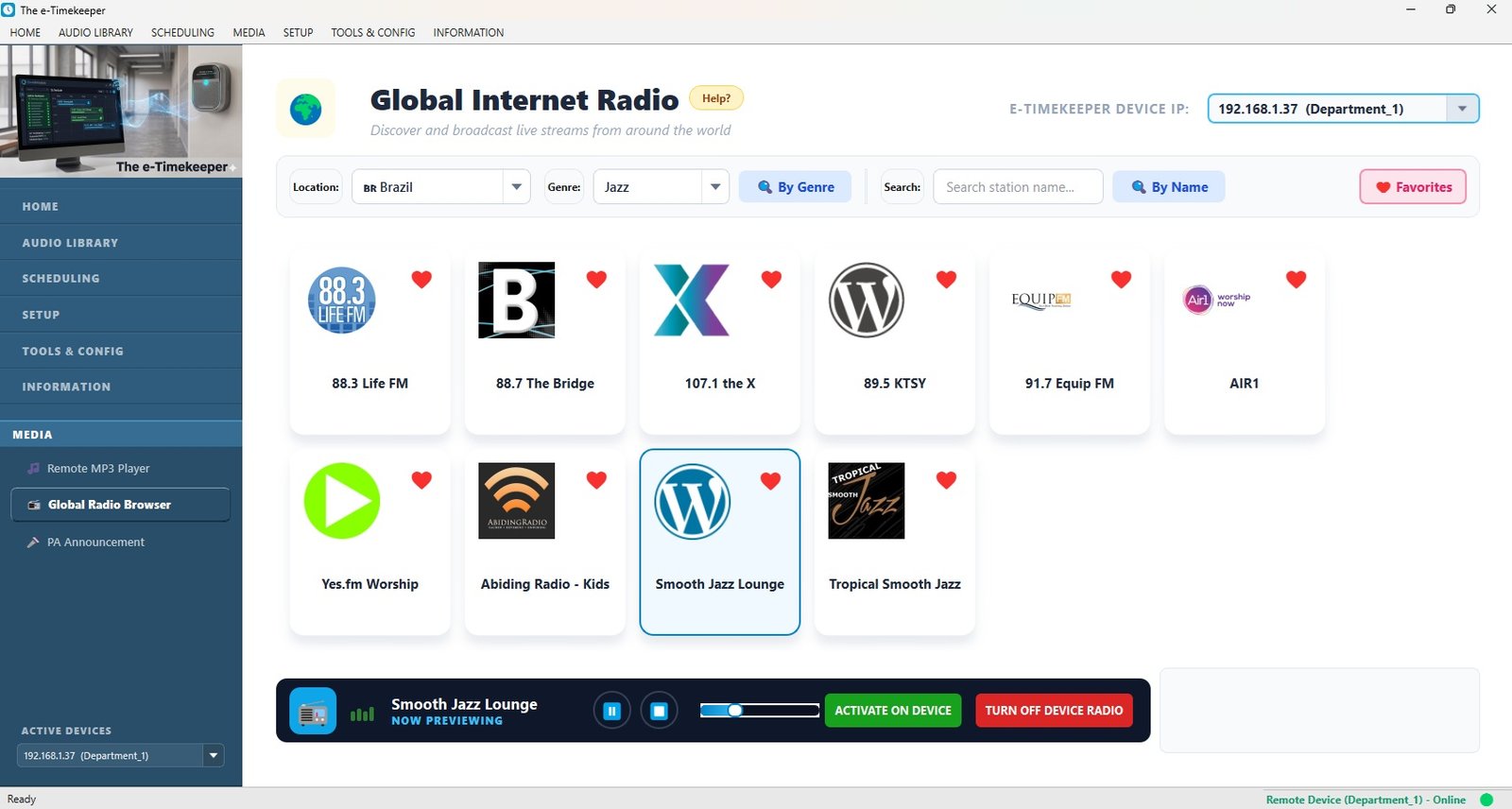
Search worldwide stations by country, genre or keyword and play them through the school speakers on demand — or put a station straight into the timetable so it starts on its own.
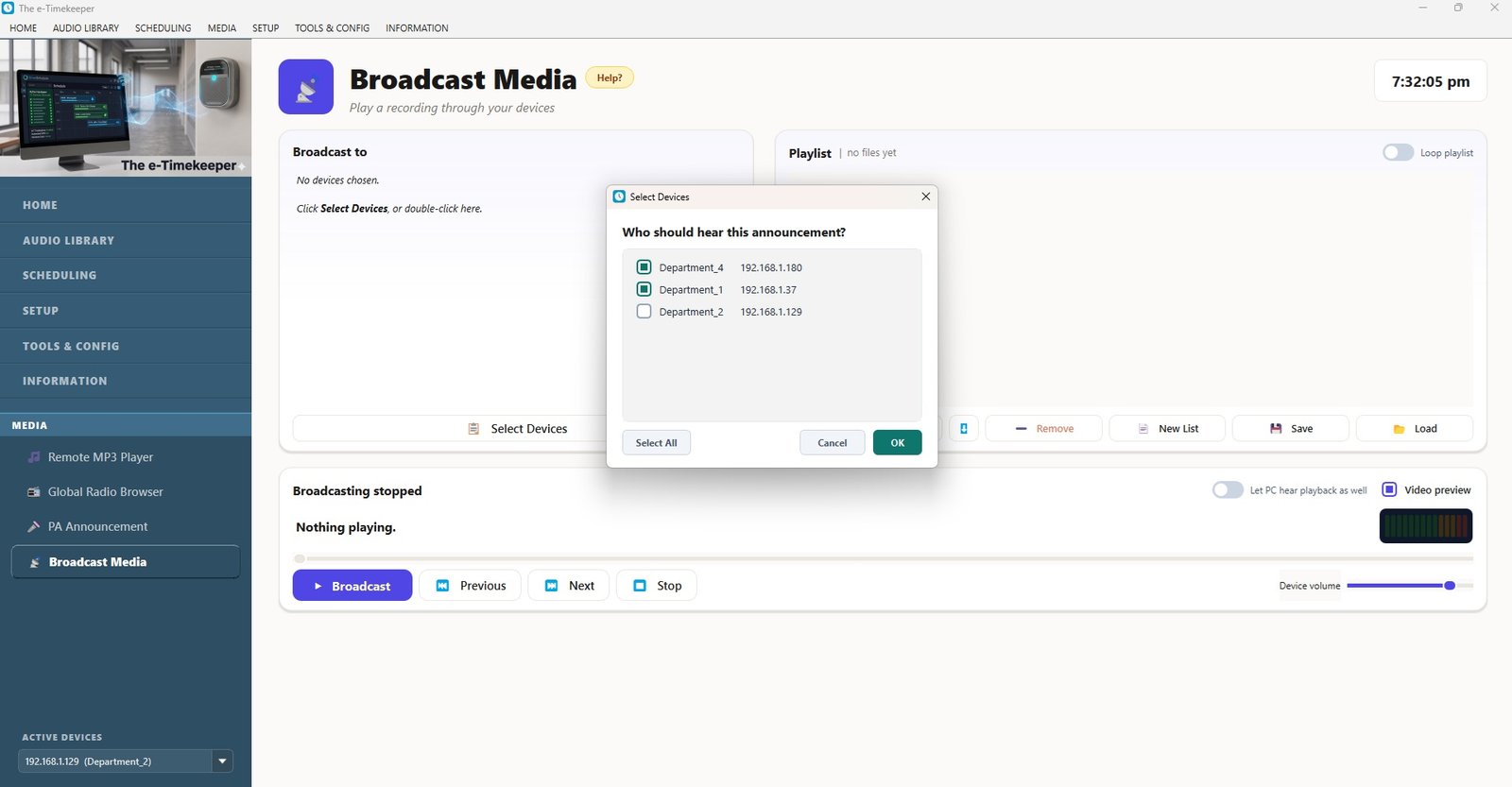
Open an audio or video file on the PC and send its sound to whichever devices you choose. A recorded lecture, an assembly talk, a language exercise — heard in every room you select, without copying anything onto the devices.
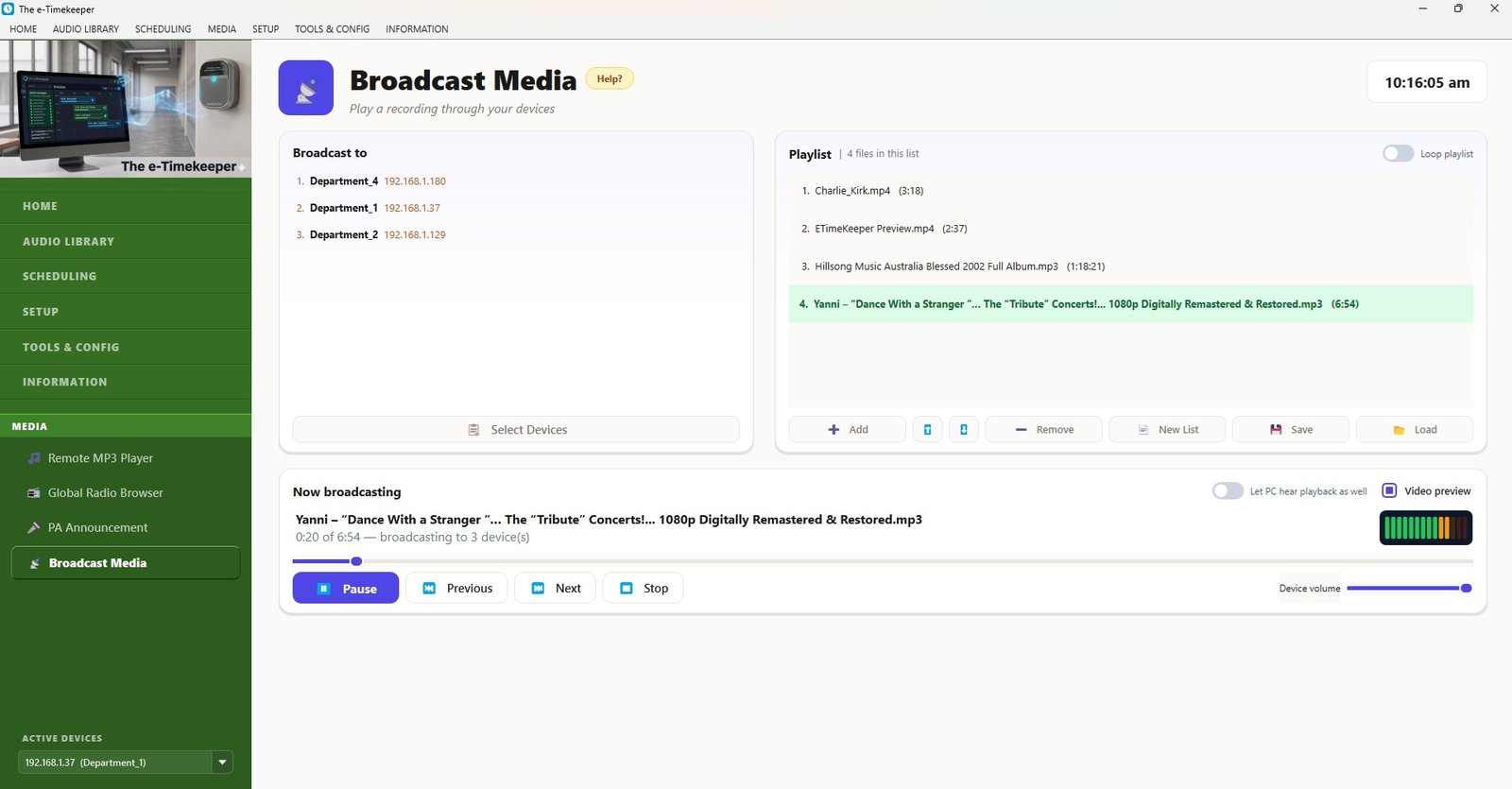
Build a playlist on the PC, pick the devices, and press play. The audio is streamed to them live, so there is no limit imposed by what a controller can store — a whole lecture series never has to fit on a memory card.

The Broadcast Media Player — a playlist on the PC, playing through the rooms you chose.
This plays files, not whatever happens to be coming out of the PC. That distinction matters more than it first sounds.

Pick the rooms first — everywhere else carries on undisturbed.
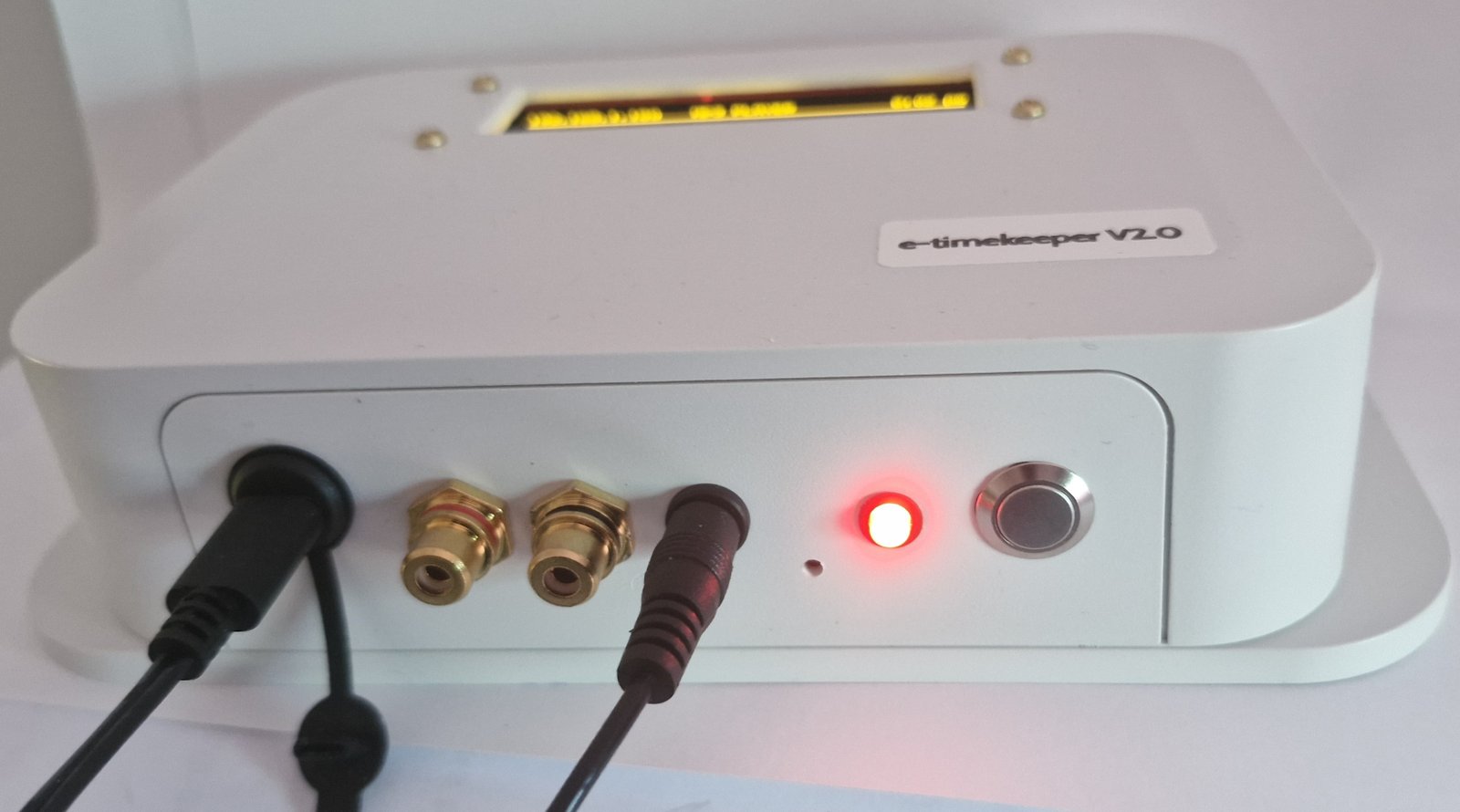
The controller mounts on the wall, wires into the PA you already have, and can drive equipment well beyond a bell.
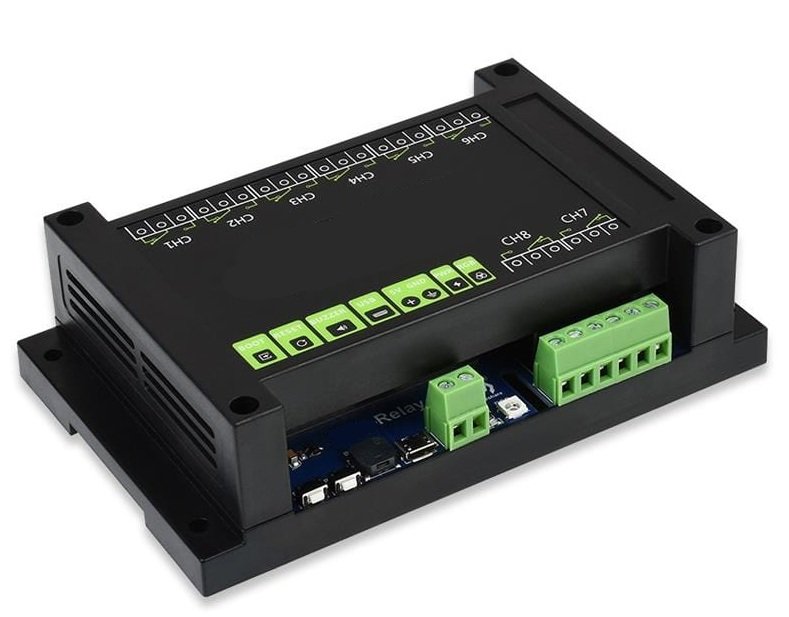
Alongside chimes and spoken announcements, the relay controller can trigger external equipment on the same schedule.

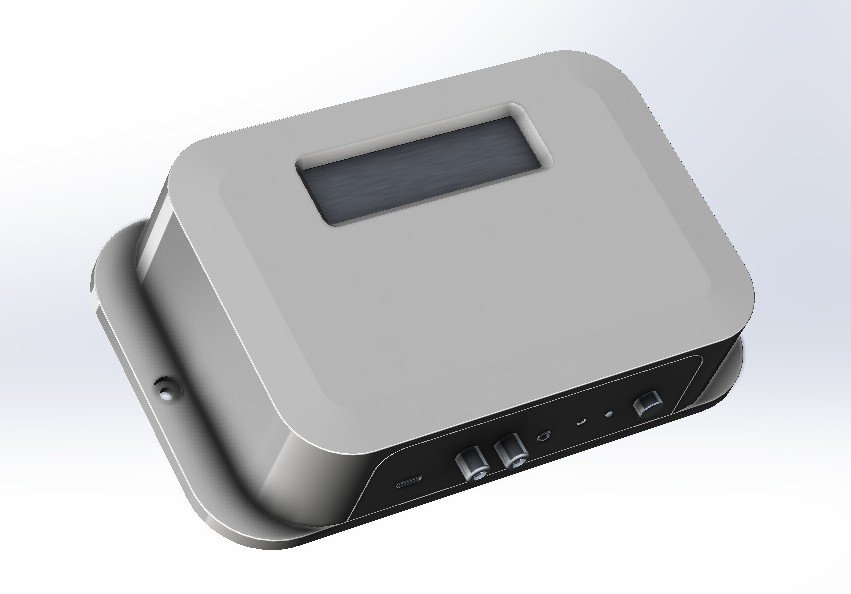
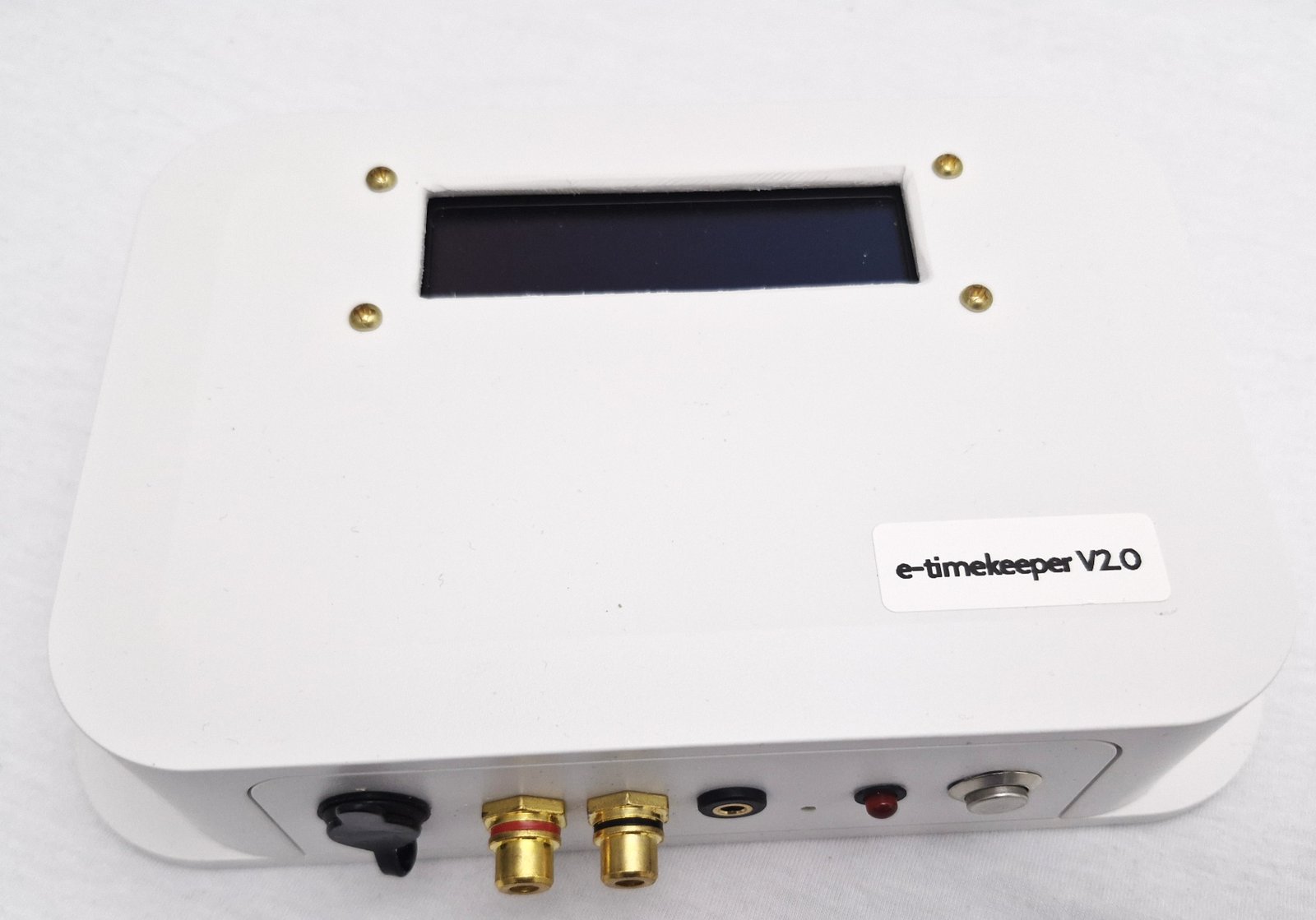
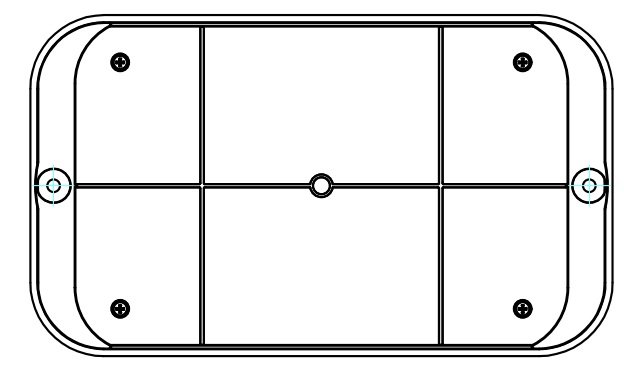
Audio outputs, status indicator and control on the controller body.

The relay controller — what actually fires your bells, sirens and gates.
A system that runs the school day has to be hard to disturb. These protections are built in.
| Item | Detail |
|---|---|
| Control application | Windows desktop application (version 2.0) |
| Link between PC and device | Your existing Wi-Fi — no extra wiring, no server |
| Operation without the PC | Full — the device runs its schedule independently |
| Activity types | Voice announcement, chime/bell tone, internet radio stream, relay trigger |
| Activity repeat | 1 to 5 times |
| Relay on/off duration | 1 to 10 seconds, in 0.1 second steps |
| Music storage on device | 8 GB, on a 32 GB microSD card |
| Custom audio file size | Up to 15 MB per file |
| Continuous music playback | Up to 12 hours |
| Broadcast a media file | Audio or video from the PC, streamed live to selected devices |
| Devices per school | Multiple controllers, managed from one application |
| Warranty | One year from delivery, on the controller (excludes the power adapter and accidental damage) |
| Firmware updates | Over the air, with a fleet compatibility check |
You buy the system once and it is yours. There is no monthly fee, no per-student charge and nothing to renew.


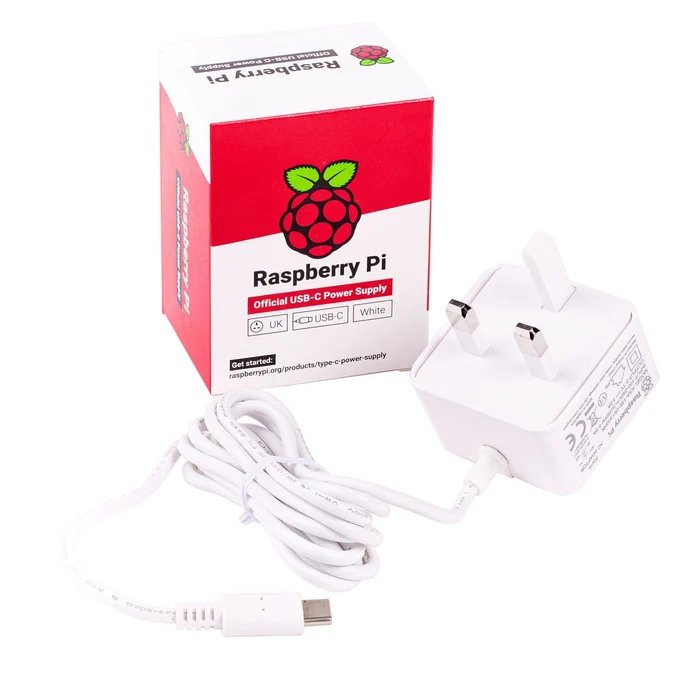
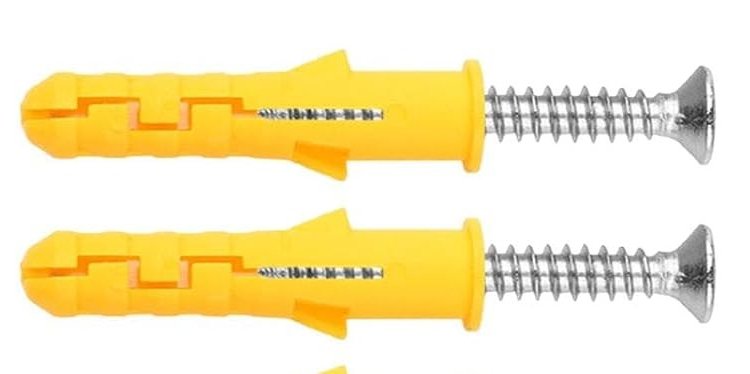
Images are for reference. Accessories may differ in packaging or colour from those shown. The e-Timekeeper controller itself is exactly as pictured.
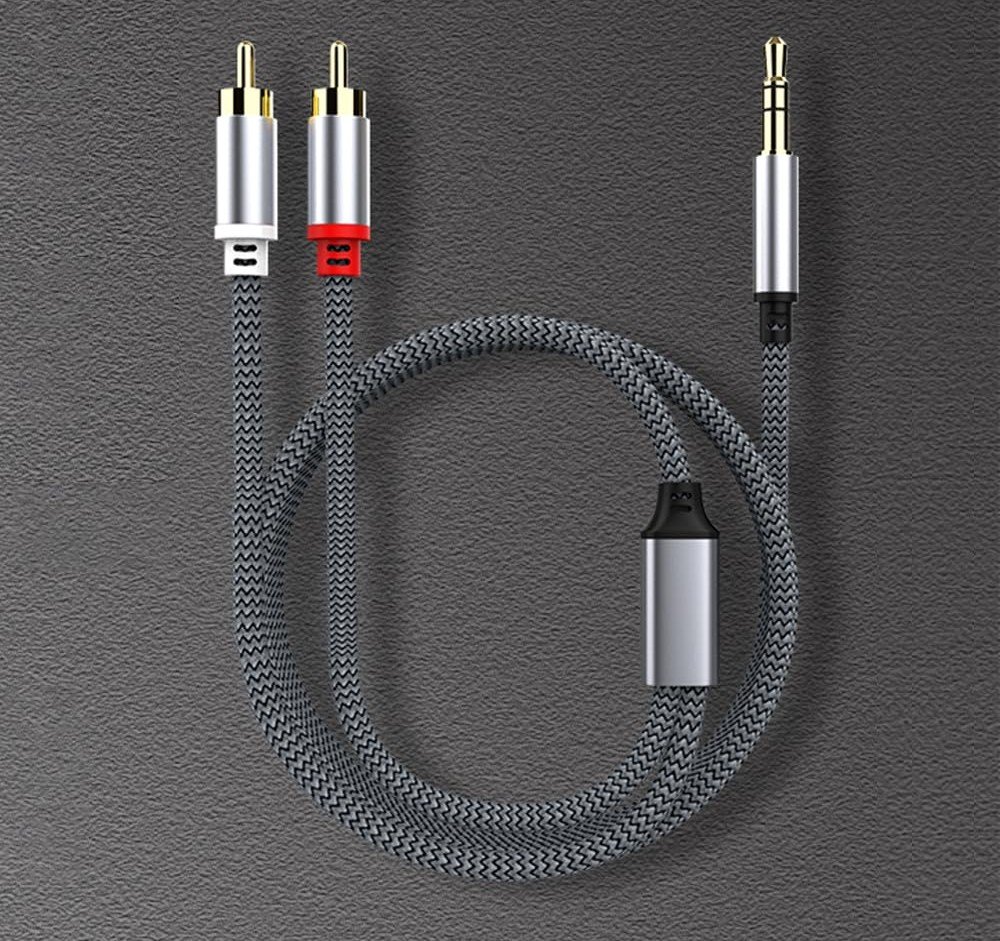
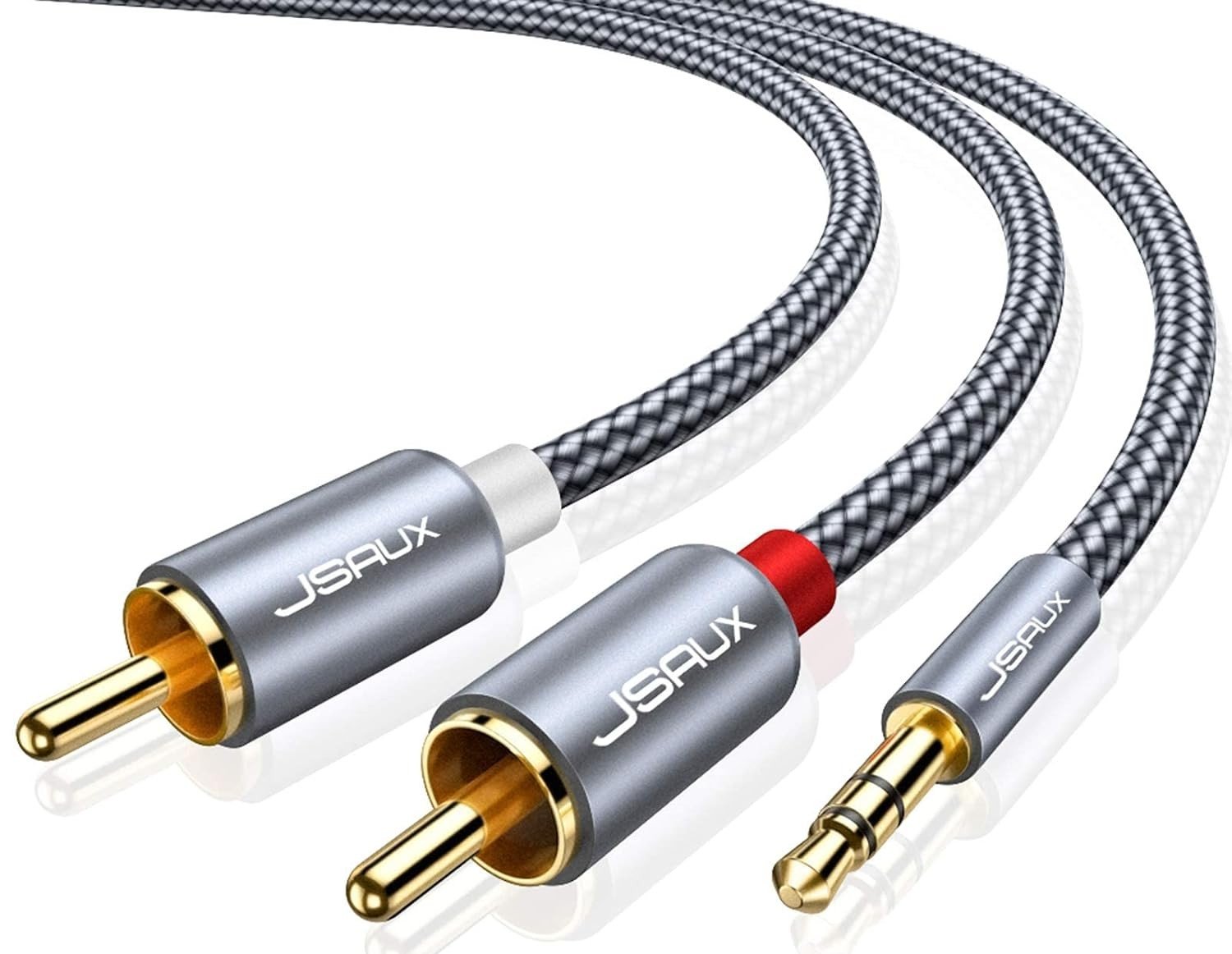
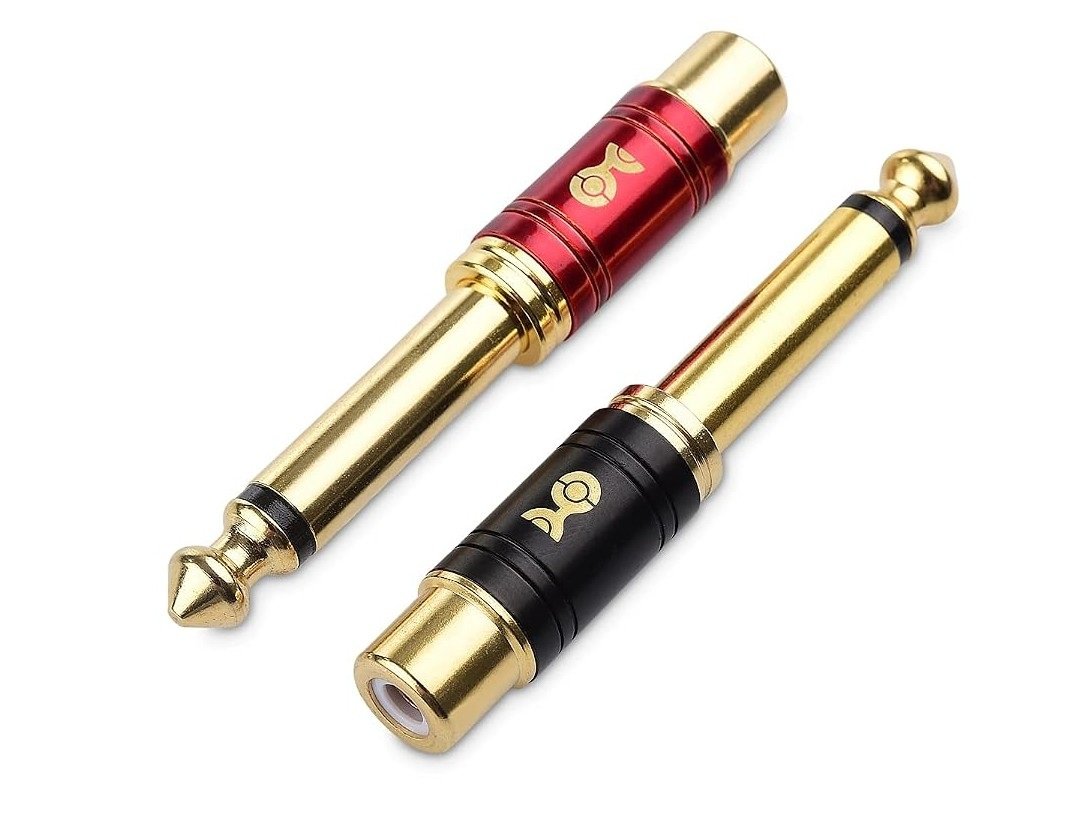
The audio cable and adapter needed to reach a standard PA input are both supplied. An unusually long run to your amplifier may need a longer cable than the one included.
Delivered by courier within 7 working days.
Loading availability…
Prefer an invoice? Request a quote.
No. The PC is used only to build schedules and send them to the device. Once sent, the controller runs entirely on its own — you can switch the computer off, or take the laptop home.
The controller keeps its own time and its schedule. When power returns it carries on with the day as programmed — nobody has to reset anything.
Not for day-to-day running. Bells, announcements and relays all work with no internet at all. You need a connection only for optional extras: generating the highest-quality announcement voices, streaming internet radio, and downloading firmware updates.
Yes. Day-to-day use is choosing a saved day pattern and clicking dates on a calendar. Most schools set up a term once and then only touch it for exam weeks and holidays. A full user manual is supplied, and we help you with the first setup.
Your existing PA system or amplifier, using a standard audio cable. If you also want it to ring physical bells, drive a siren, or operate a gate or motor, the relay controller handles that on the same schedule.
Yes — hold to talk from the PC and your voice goes out live through the speakers. You can also play music or radio at any time. Anything playing steps aside for a scheduled bell and resumes afterwards, and an emergency override suppresses all scheduled activity when you need the system to yourself.
Yes. Open the audio or video file on the PC, choose which devices should hear it, and press play — the sound goes out live to those rooms only. Nothing is copied onto the devices, so the length of the recording is not limited by their storage. Importantly it plays the file you opened and nothing else: a notification or a private call on that computer cannot reach the classrooms, and it works with the PC's own speakers muted. A scheduled bell still takes priority, and the recording resumes afterwards from where it stopped.
Yes. Larger sites often place one controller per block or in a boarding house. They are all managed from the same application, and you can order several above.
We email you a download link as soon as your payment is confirmed, to the address you used to order. Install it on the PC you will use to build schedules — Windows 10 or 11. One thing to know: the app needs the device to do anything useful. You can install it and look around while you wait, but setup cannot get past the welcome screen until your e-Timekeeper arrives and is powered on, because the next step asks you to connect to the device itself.
The controller carries a one-year warranty from delivery. It covers faults in the device itself — it does not cover the power adapter, or accidental damage such as the unit being dropped or knocked from its mounting. Support does not stop when the warranty does: if a device fails later, contact us and we will quote for a repair. Full details are in the terms & conditions.
You can cancel for a full refund within 24 hours of ordering, as long as it has not been dispatched — and if you order at a weekend, you have until the end of the weekend. After dispatch, an order cannot be cancelled, but you can start a return within 10 days of delivery. A return must come back in its original packaging and in the condition it arrived — a torn or crushed box means the return cannot be accepted, so please keep it. You pay the return shipping and are responsible for packing it safely; we inspect the item on arrival and refund in full once it passes, deducting the cost of any damage. Faulty items are a separate matter and are covered by the warranty. Full details are in the terms & conditions.
Card, bank transfer, USSD or bank account through Paystack, using the order form above. If your school needs a formal invoice or quote before releasing funds, email us and we will send one.
Tell us what you currently have, and we will tell you exactly what your school needs.
If your school uses e-Timekeeper, a sentence from you helps another school decide. Nothing is published until we have spoken to you first.
We will email you as soon as the next batch lands. No obligation.